Presscloud is growing rapidly. Not only in the number of users but also in the number of journalists, and of course, in functionalities. In recent times, we have built all sorts of features in the platform again. To inform you as a user and help you make the most of it, we have written this blog. Take advantage of it!
Shortcut to LinkedIn
Imagine: you've just written and sent out a press release within Presscloud. You're very proud of it, and you actually want to inform not only the media but also your own network. And rightly so! Friends, acquaintances, and (former) colleagues would certainly enjoy reading a press release that you have written (perhaps with a little help from our writing tools).
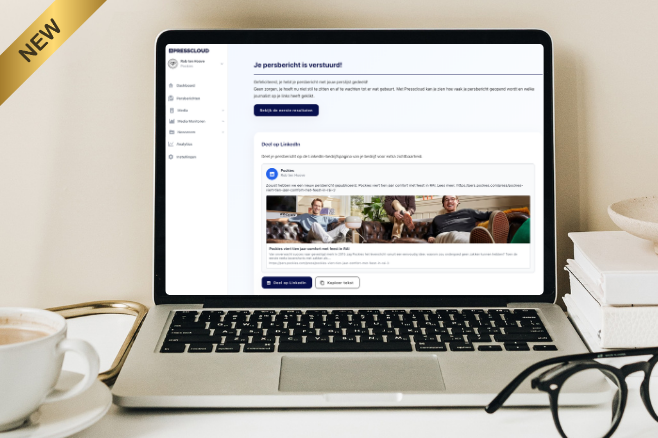
To facilitate this, we have developed something wonderful. Immediately after sending the press release, you now see an embedded LinkedIn post. You simply need to click the 'Share on LinkedIn' button, and you're directly taken to LinkedIn. Your press release - with a URL to your company's Newsroom - is immediately added there. You only need to write a small text yourself (or copy and paste the default text we have set) and voilà: you have shared your press release via LinkedIn for even more visibility. There's a good chance that if you tag Presscloud, we will repost your post!
Sorting image sets
Speaking of the Newsroom, an important component of it is the Media Kit. Here you can display multiple sets/categories of images that give a general impression of your company or, for example, specific campaigns or collections. It may be that there is a specific order within those collections.
For instance, in clothing brands, you see an SS (Spring, Summer) collection and an FW (Fall, Winter) collection annually. Naturally, you want to display the most recent one at the top, but until now, the newly added image sets appeared at the very bottom. No more! You now have the option to place your image sets in a specific order. Simply go to the Media Kit associated with the Newsroom in your account and drag the image sets up or down.
Hide certain campaigns
Finally, it is now possible to hide certain press releases in your campaign overview. Handy when these are messages you sent to yourself as a test and do not want to display as a 'campaign'. Or messages that you sent several times but actually only want to display once. The keyword here is 'overview'. Sometimes, less is more.
To activate this, you need to click on the three dots at the right side of your campaign overview and select 'Hide campaign in overview'. If you want to find this campaign later, you can click on 'Show hidden press releases'. Enjoy the platform!